How to add text to a PDF on iPhone
Add text to a PDF on iPhone with a Markup text box, Preview's form filling, or a Text tool you can move, resize, rotate and style. What none of them do.
 Kyneto PDF
Get the app
Short, practical guides to working with PDF files on a phone.
Add text to a PDF on iPhone with a Markup text box, Preview's form filling, or a Text tool you can move, resize, rotate and style. What none of them do.
The best free PDF app for iPhone depends on the job. Apple's built-in tools first, then six apps: what each free tier covers and which upload your file.
Combine PDF files on iPhone with Files, the Preview app or Kyneto PDF: how each handles page order, photos and password-protected files.
Compress a PDF on iPhone: why scans from Notes are so big, what Files, Shortcuts and Preview can do, and how to aim at a set size with no upload.
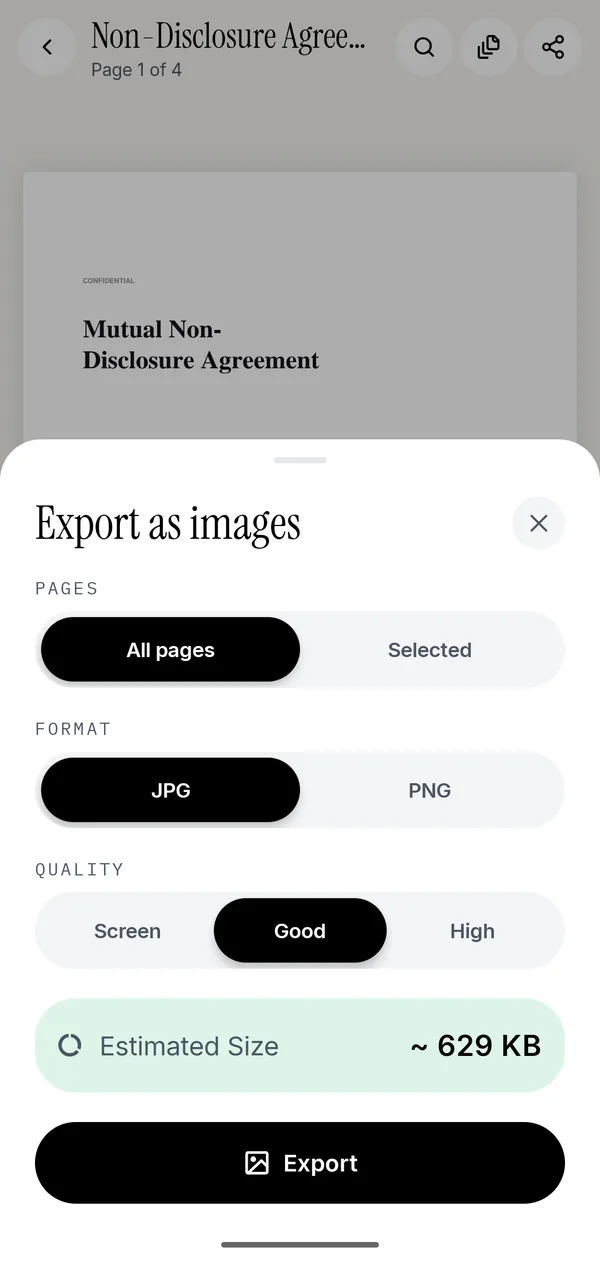
Three built-in ways to turn a PDF into JPG on iPhone (screenshot, Preview, Shortcuts), and how to save every page to Photos at a quality you choose.
Convert a photo to PDF on iPhone with the Print trick, Files or Notes, or with an app that sets page size, order and file size. Nothing is uploaded.
Crop PDF pages on iPhone with Preview or Kyneto PDF, apply one crop to every page, and why the trimmed margin stays in the file until you compress.
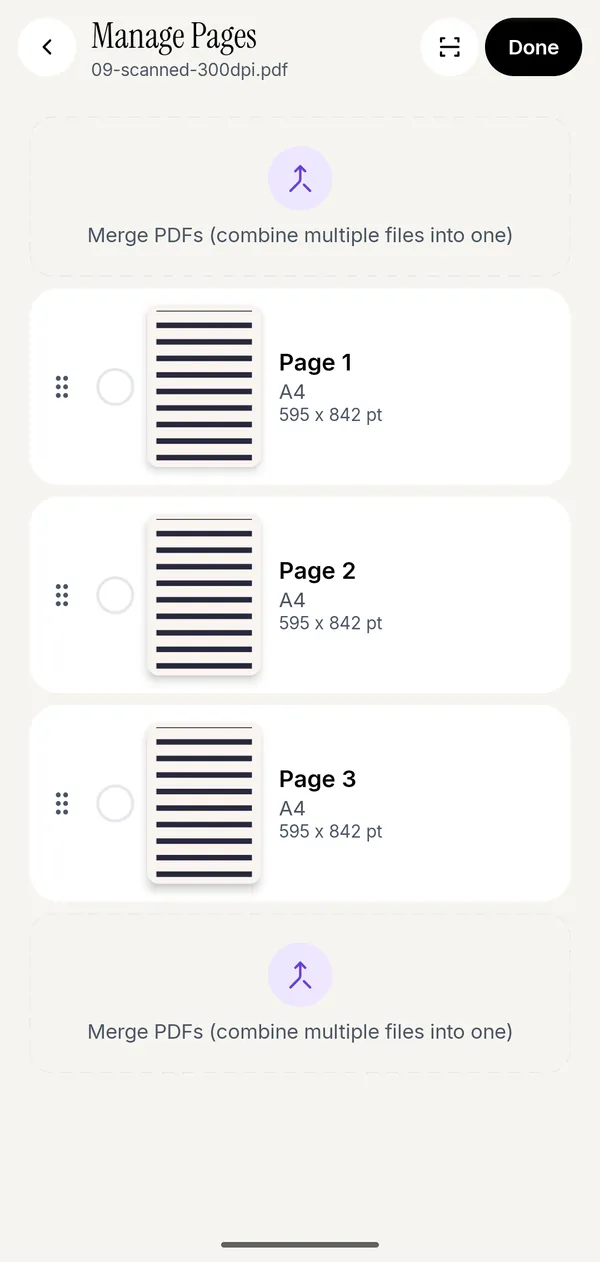
Delete pages from a PDF on iPhone with the built-in Preview app or Files, or remove a batch of pages at once and keep the original. Nothing is uploaded.
Edit a PDF on iPhone: what Markup, Files and Preview do without an app, which edits need one, and the change no phone app here can make.
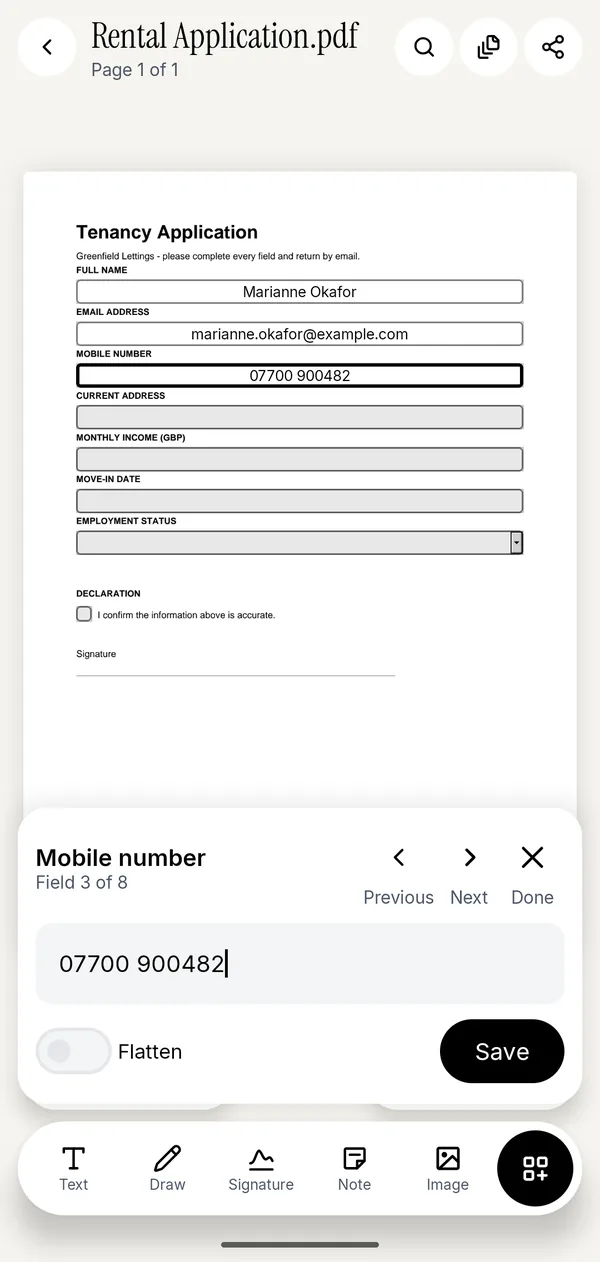
Fill out a PDF form on iPhone with AutoFill in Files or Preview, type on forms that have no fields, lock your answers with Flatten, and sign it.
iOS 26 brought the Preview app to iPhone. How to use it with PDFs (forms, markup, pages, export, scan, lock), what it leaves out, and what fills the gaps.
PDF too large to email? The real attachment limits for Gmail, Outlook, iCloud Mail and Yahoo, and three fixes that work on iPhone and Android.
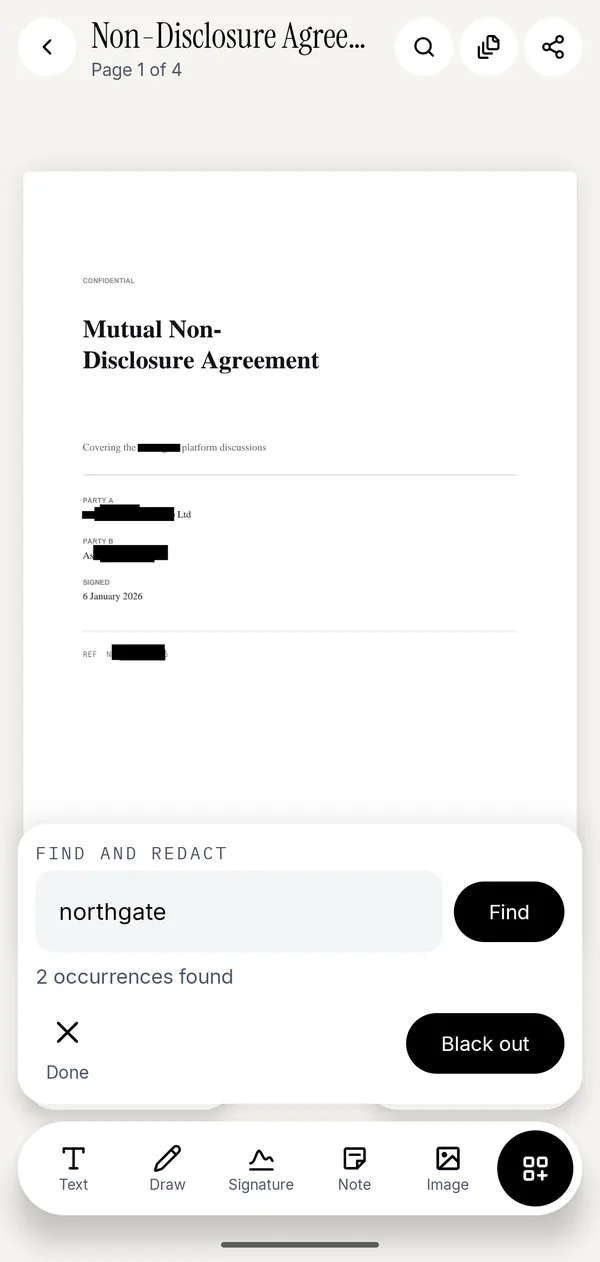
How to redact a PDF on iPhone without leaving the words under a black box. What Markup and Preview can do, where they stop, and how to remove the text.
Remove a password from a PDF on iPhone when you know it: what Files and the iOS 26 Preview app can and cannot do, and how to do it on the device.
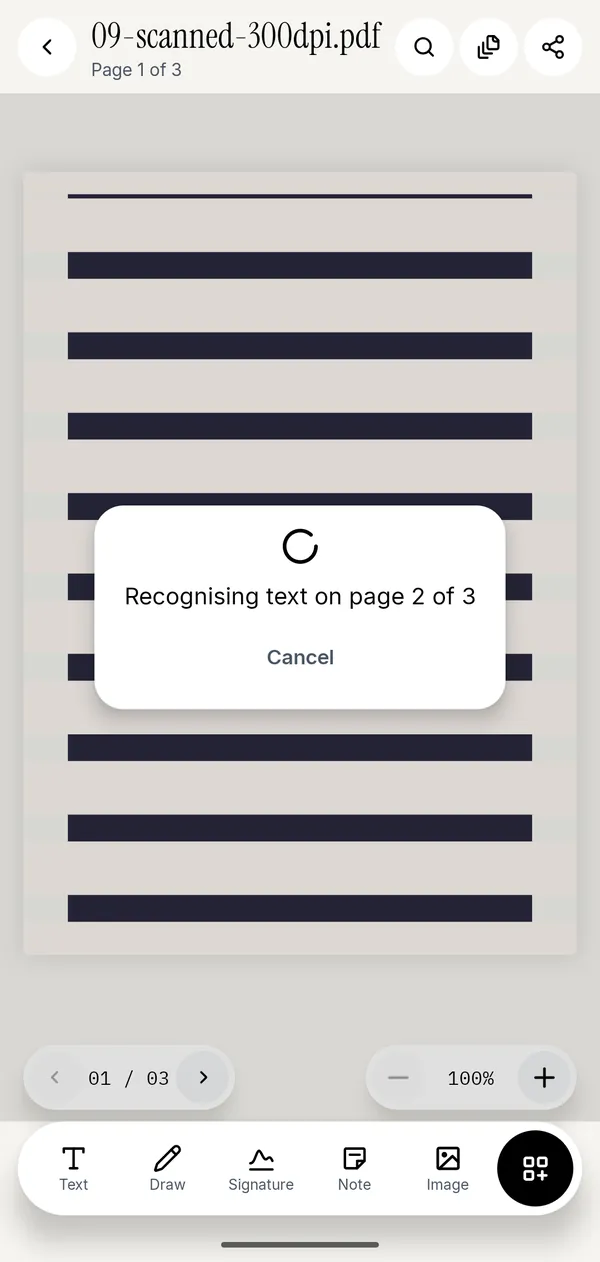
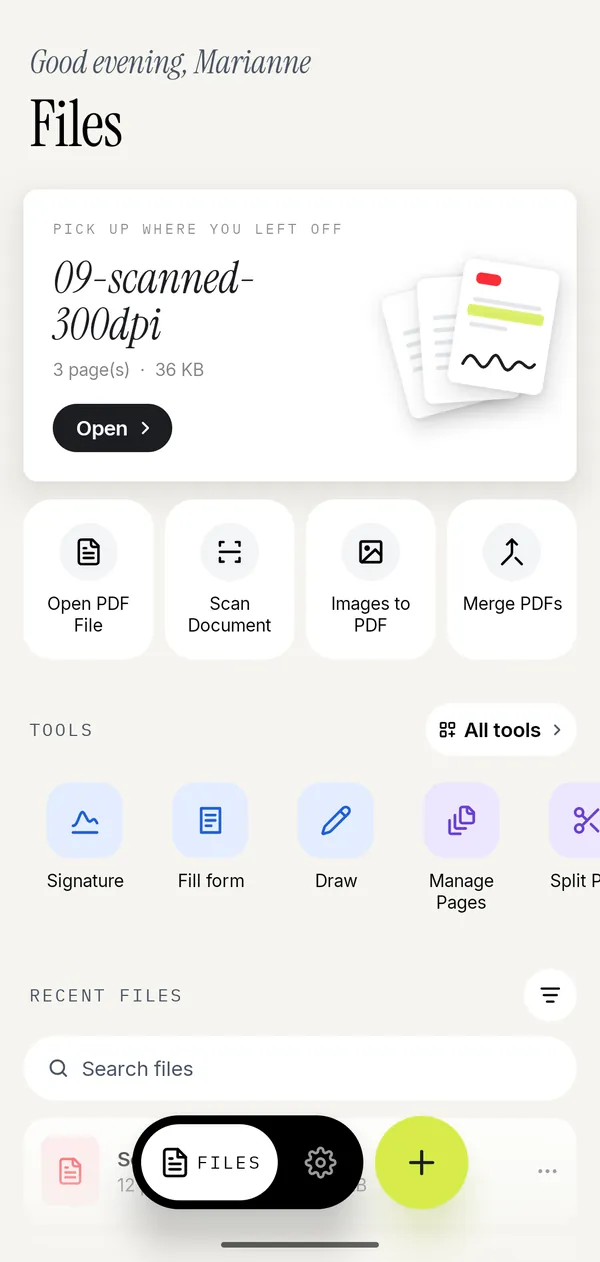
Scan a document to PDF on iPhone with Notes, Files or Preview, then add searchable text, shrink it to a size and add a missed page, all on the phone.
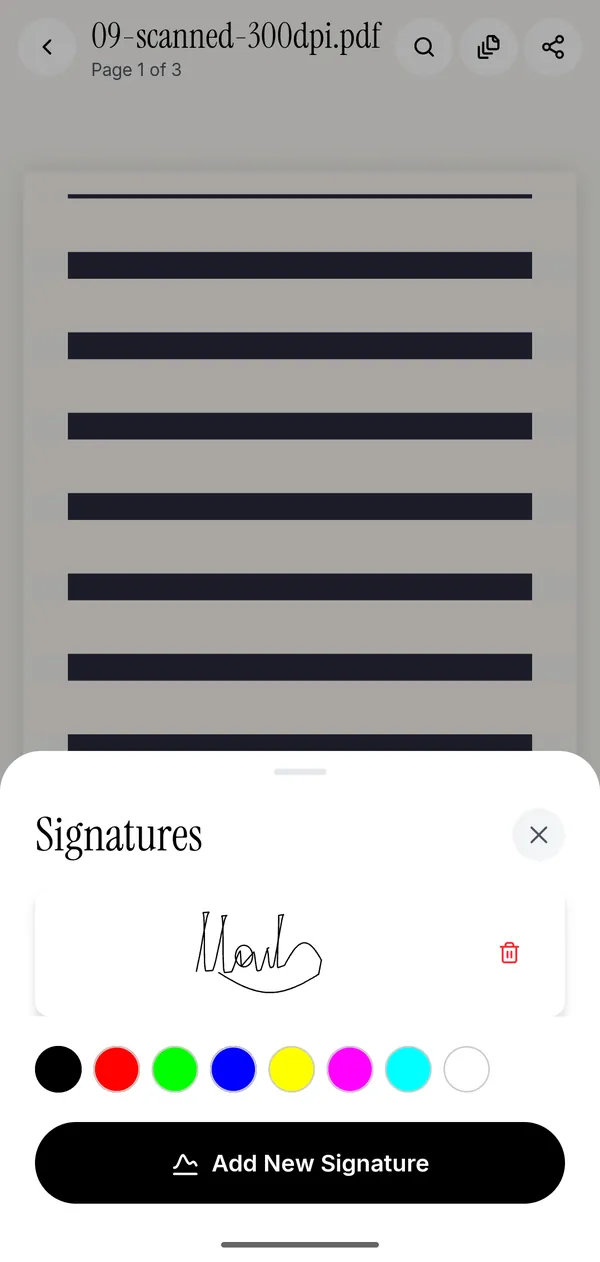
How to sign a PDF on iPhone with your finger: Markup in Files and Mail, signing a PDF that came by email, and reusing one saved signature.
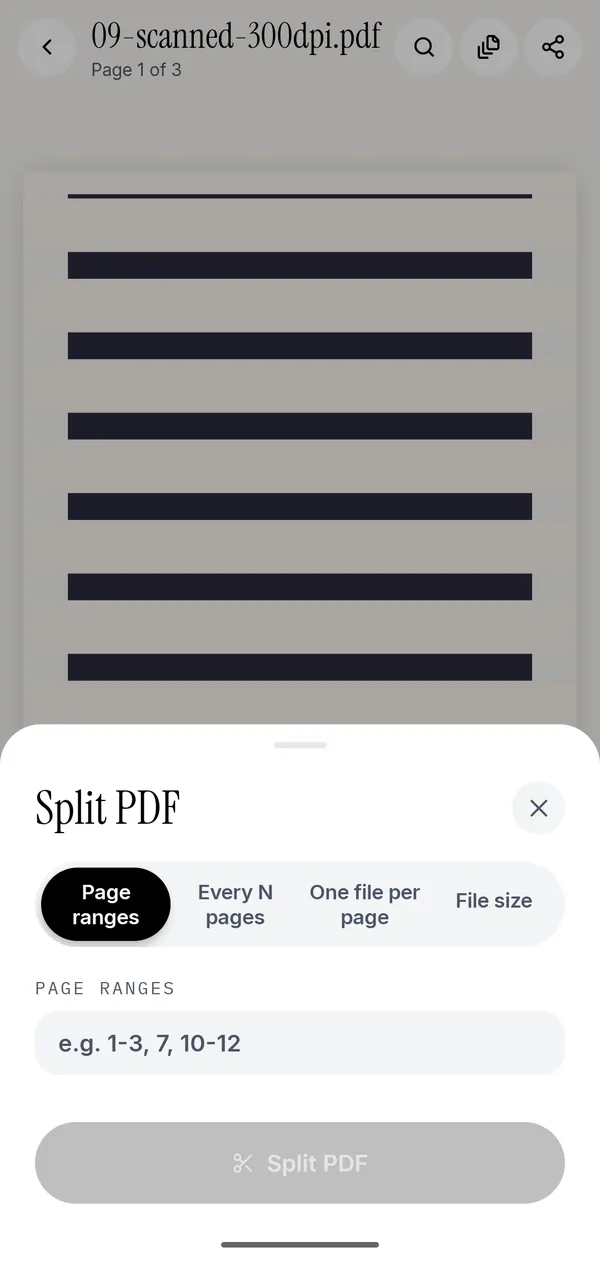
How to split a PDF on iPhone into several files: the built-in Shortcuts and Print workarounds, and a Split PDF tool with page ranges and file size limits.
A black rectangle over a name does not remove it. Redact on Android so the text underneath is gone from the file, not just hidden from view.
Remove the pages you do not need, drag the rest into order and turn a sideways scan upright, on Android, with nothing uploaded and no account.
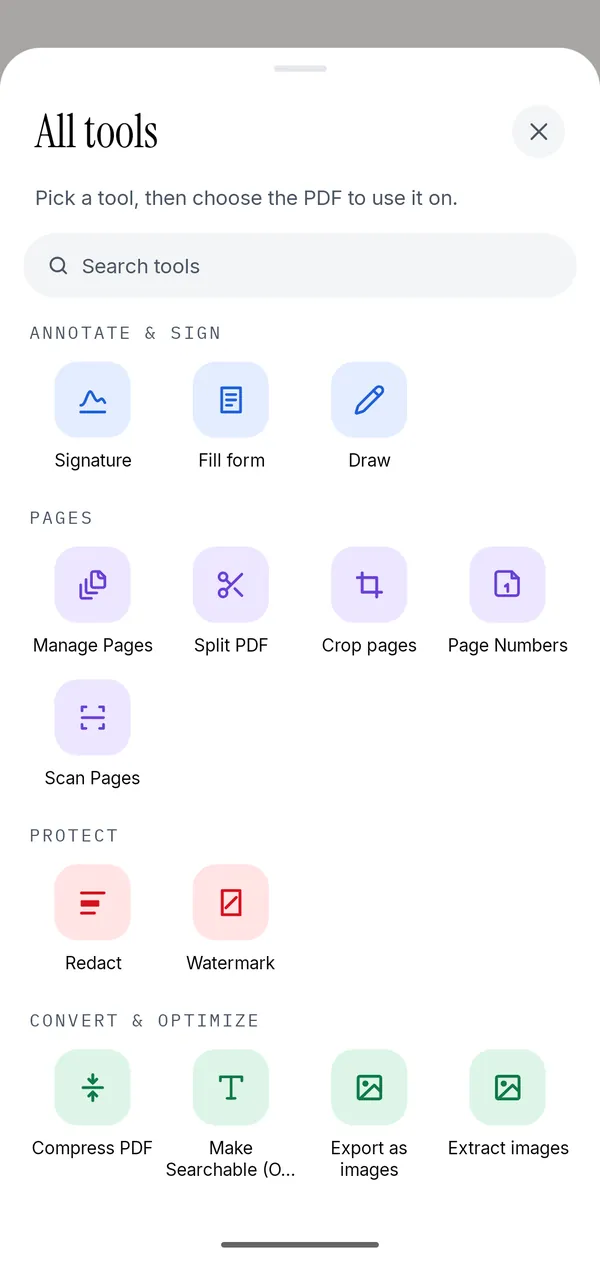
Which tool does which job when you edit a PDF on an Android phone with no Acrobat subscription, and the one change no free mobile app can make.
Fill a PDF form on Android field by field, checkboxes and dropdowns included, and flatten it so nobody can change your answers. Nothing is uploaded.
Which Acrobat features you actually use, which free Android apps replace each one, and the three jobs where nothing free is good enough yet.
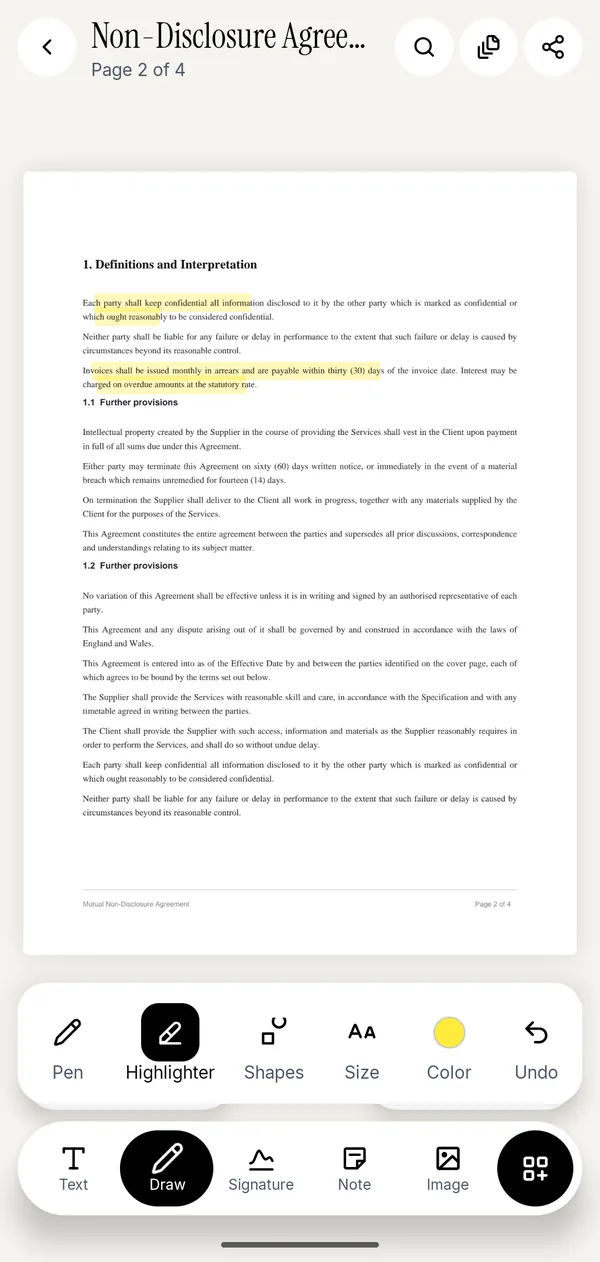
Highlight a contract, draw on it, add sticky notes and shapes on an Android phone, then send the marked-up copy. No account, nothing uploaded.
What each one does, what each one costs, and which jobs genuinely need Acrobat. An honest comparison for people editing PDFs on an Android phone.
Export every page of a PDF as an image, or pull out the pictures embedded inside it, on your phone. Choose the format and quality, see the size first.
Combine photos of a form, a receipt or a passport into one PDF on your phone, at A4 or Letter, in the order you choose, with nothing uploaded.
Stamp DRAFT or CONFIDENTIAL across every page of a PDF on Android, set the opacity, angle and page range, and add page numbers while you are there.
Which Android PDF apps really work without an internet connection, and which quietly upload your document. An honest comparison of six options.
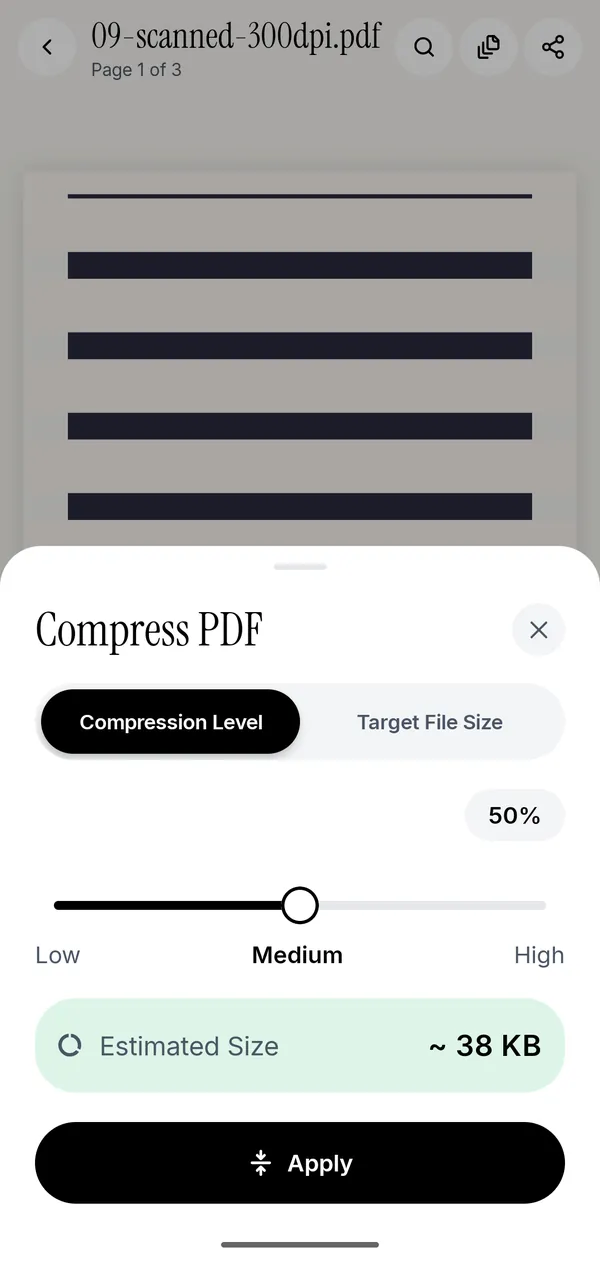
Type the size the upload form allows and compress the PDF to it on your Android phone, without uploading it to a website.
Open a protected PDF with its password and save a copy that opens without one, entirely on your Android phone. Nothing is uploaded.
Use your phone camera as a scanner, straighten the page automatically and add an on-device OCR layer so you can search inside the scan. All offline.
Draw your signature once, drop it on the page and export the signed PDF. No printer, no scanner, no account, and the document never leaves your phone.
Split a PDF by page ranges, every N pages, one file per page or by file size, or extract just the pages you need. All of it offline on Android.
Combine several PDFs into one document on Android, in the order you choose, with nothing uploaded and no account to make.