
Black out text in a PDF properly, on your phone
To black out text in a PDF on Android, open the file in Kyneto PDF, tap All tools and choose Redact. Drag a box over anything you want hidden, or type a word into Find and redact to box every occurrence at once, then tap Black out. The text underneath is removed from the file, not just covered.
This matters more than it sounds. The most common way confidential information leaks out of a PDF is a black rectangle drawn on top of text that is still there, waiting for anyone who selects it, copies it, or opens the file in a text editor.
Drag over what you want gone
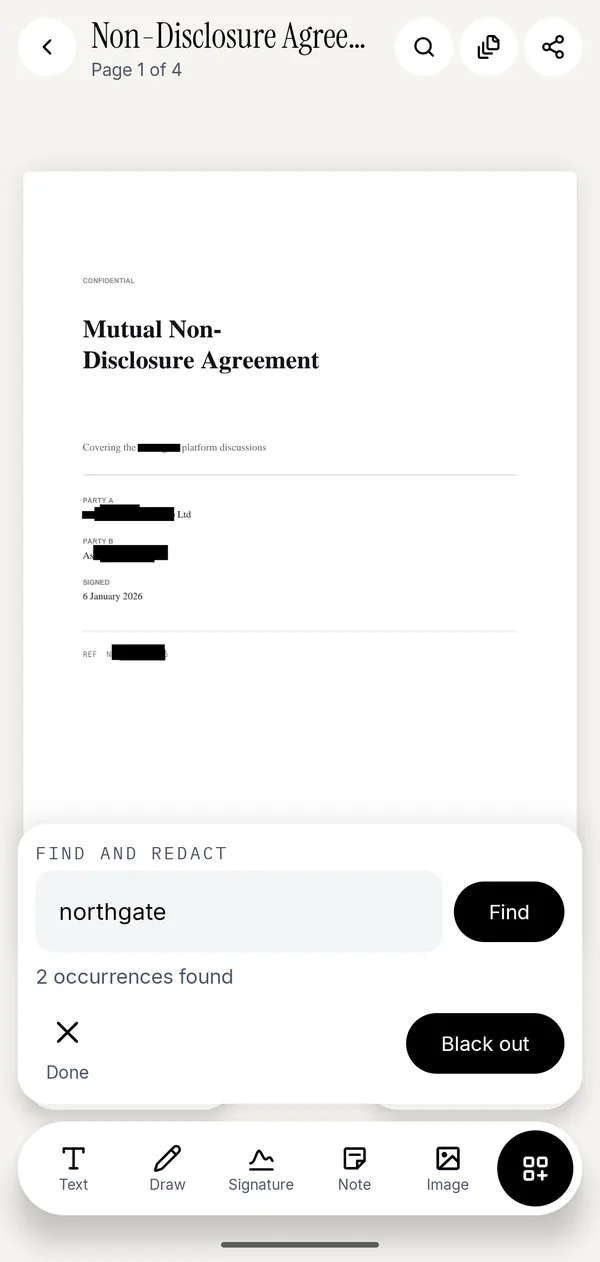
- Open the PDF, tap All tools, then Redact under Protect.
- Drag a box over the name, the number or the address. Repeat for every area, on any page.
- For something that repeats, type it into Word or number to hide and tap Find. The app reports how many occurrences it found and boxes them all.
- Tap a box to select it, drag it to adjust, or use the delete badge to remove it if you boxed the wrong thing.
- Tap Black out. Confirm the warning, and the pages you boxed are rewritten.
Nothing is applied until you tap Black out, so you can lay out every box first and check the page before committing.
What actually happens to the page
The app is explicit about the trade, because it is a real one. The pages you boxed become images. That means:
- The hidden text is gone from the file. Selecting, copying and searching cannot recover it.
- The rest of the text on those pages stops being selectable and searchable too, because the whole page is now a picture.
- Once you save or share the file, it cannot be undone.
Pages you did not box are left alone. Redacting one name on page three does not flatten the other forty pages.
If you need the document searchable afterwards, run Make Searchable (OCR) from Convert & optimize once the redaction is applied. It reads the flattened pages and adds a fresh text layer. The redacted words are not in it, because they are not on the page any more.
Why the rectangle trick fails
Drawing a filled black rectangle with the Shapes tool, or with the shape tool in any annotation app, adds an object on top of the page. The text stays in the content stream below it. Anyone can:
- Select the text through the rectangle and copy it.
- Delete the rectangle in an editor.
- Extract the raw text with any PDF library in about four lines of code.
Several well-publicised leaks of court filings and government documents have worked exactly like that. Annotation and redaction look identical on screen and are completely different in the file.
Use Draw and Note for markup you want someone to read. Use Redact when the point is that nobody can.
What to black out before you send a document
A quick list, from the things people most often forget:
- Bank account and sort code on an invoice you are using as proof of address.
- Your full date of birth on a passport or ID scan, when only the name and the photo are needed.
- A third party's name and address on a contract you are sharing as a template.
- The reference number in a header or footer, which repeats on every page. Find and redact handles this in one go.
Redaction works on the page. Author names, comments and file properties live in the PDF's metadata and are a separate problem, so rename the file and check its properties before sending anything sensitive.
Questions people ask
How do I black out text in a PDF on Android?
Open the PDF in Kyneto PDF, go to All tools → Redact, drag a box over the text, then tap Black out. The text underneath is removed from the document.
Is a black box over text in a PDF safe?
Not if it is an annotation or a drawn shape. The text remains in the file and can be selected or extracted. Only a real redaction, which rewrites the page, removes it.
Can I undo a redaction?
Before you apply it, yes: tap a box and delete it. After you tap Black out and save or share the file, no. Keep the original if you might need it.
Does redacting make the text on the rest of the page unselectable?
On the pages you redacted, yes, because those pages become images. Other pages are untouched. Run Make Searchable (OCR) afterwards if you need the text layer back.
Can I redact every occurrence of a name at once?
Yes. Type it into the Find and redact field and tap Find. The app boxes every occurrence it finds and tells you how many there were.
Does redaction happen on my phone?
Yes. The document is never uploaded, which is the point when the thing you are hiding is an account number.
Free to download. No account, nothing uploaded.